NYU Stern Learning Science Lab (@sternlsl) 's Twitter Profile
NYU Stern Learning Science Lab

@sternlsl

Official Twitter account of the @NYUStern Learning Science Lab

ID: 1162056701408927744

calendar_today15-08-2019 17:41:22

75 Tweet

78 Followers

155 Following
NYU Stern Learning Science Lab (@sternlsl) 's Twitter Profile Photo

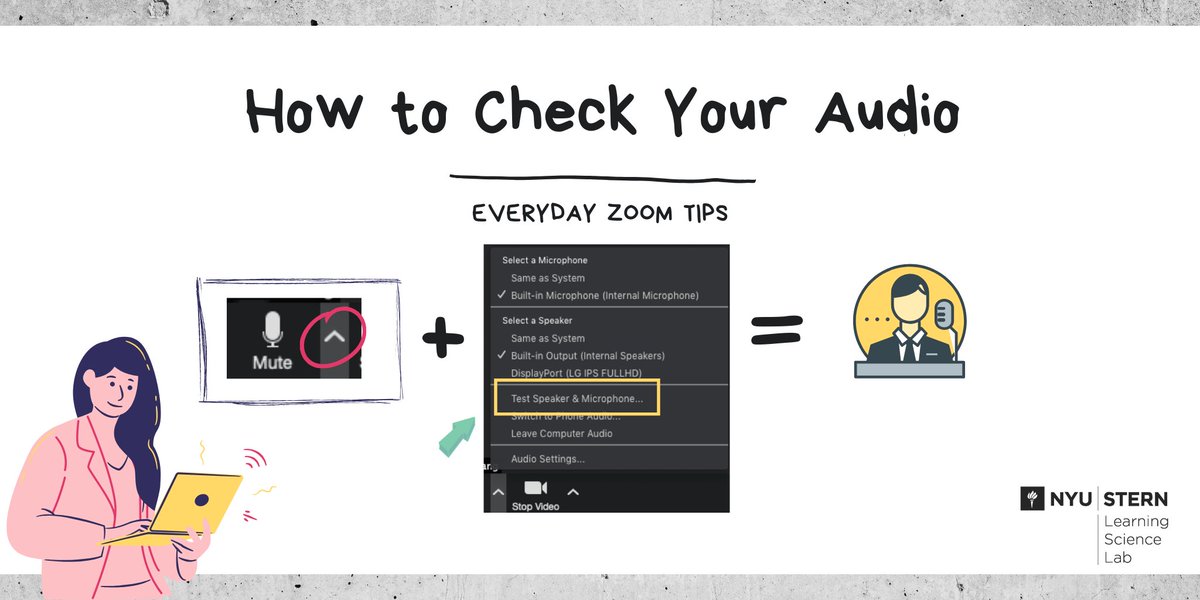
Check your audio before class starts to make sure you can hear and be heard 1: Join the meeting 2: Click" ^ " next to the microphone 3: Choose "Test Speaker & Microphone" #remoteteaching #zoomtips

Check your audio before class starts to make sure you can hear and be heard

1: Join the meeting
2: Click" ^ " next to the microphone
3: Choose "Test Speaker & Microphone"

#remoteteaching #zoomtips
NYU Stern Learning Science Lab (@sternlsl) 's Twitter Profile Photo

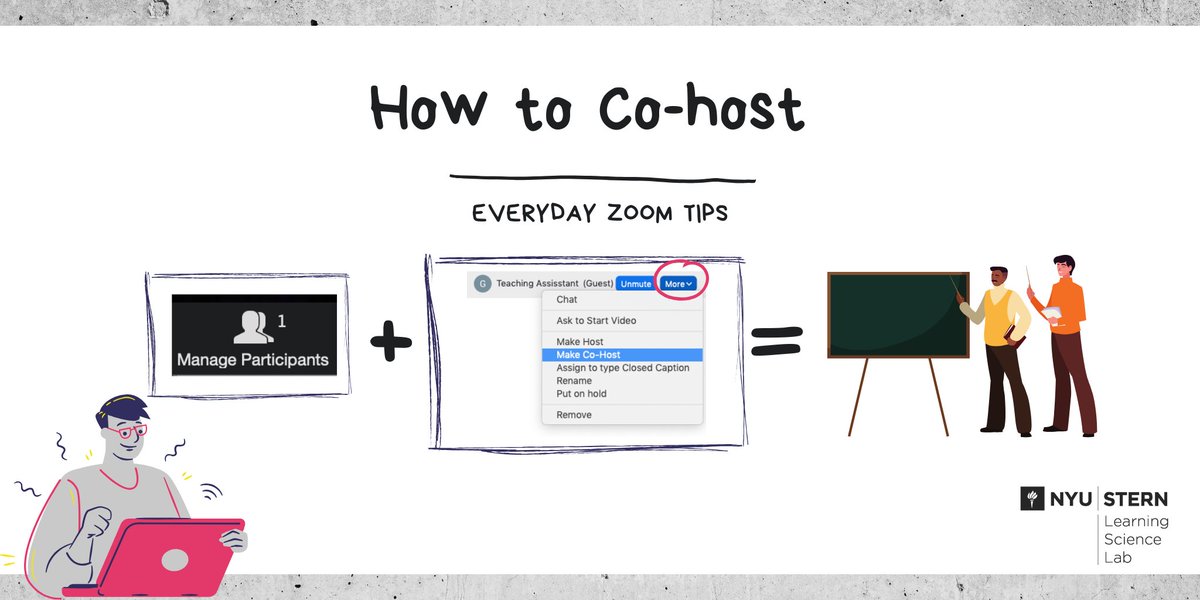
Assign a co-host to your Zoom session: Click Manage Participants > hover over name + choose More > Click Make Co-Host. Co-Hosts can record the meeting and manage participants. (But can't start or end the meeting and can't launch or manage breakout rooms) #nyustern #zoomtips

Assign a co-host to your Zoom session: Click Manage Participants > hover over name + choose More > Click Make Co-Host. Co-Hosts can record the meeting and manage participants. (But can't start or end the meeting and can't launch or manage breakout rooms) #nyustern #zoomtips
NYU Stern Learning Science Lab (@sternlsl) 's Twitter Profile Photo

3 ideas for ... managing big classes on Zoom 1. Share a visual lesson plan 2. Put the chat box to work for questions (ask a student or TF to monitor it) 3. And switch things up regularly #onlinelearning #teachingonline

NYU Stern Learning Science Lab (@sternlsl) 's Twitter Profile Photo

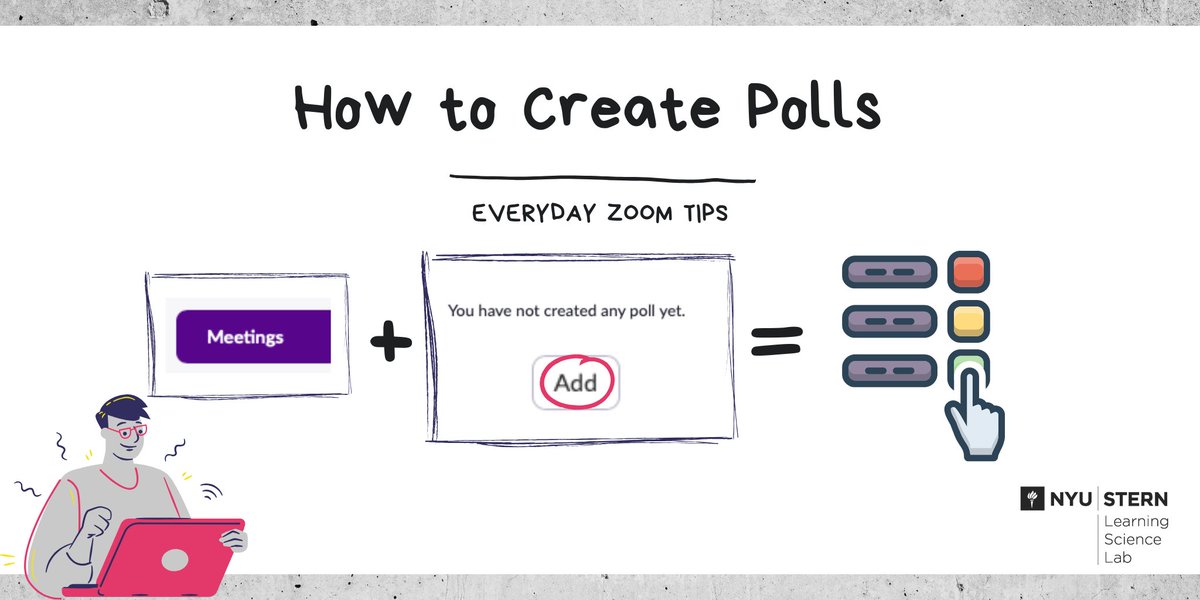
Add a poll to the Zoom meeting you scheduled in NYU Classes: 1. Go to nyu.zoom.us 2. Click "Meetings" + choose your session 3. Scroll down, click "Add" create your poll and "Save" Don't see the option? Make sure you're using Chrome. #nyustern #zoomtips

Add a poll to the Zoom meeting you scheduled in NYU Classes:

1. Go to nyu.zoom.us
2. Click "Meetings" + choose your session
3. Scroll down, click "Add" create your poll and "Save"

Don't see the option? Make sure you're using Chrome.

#nyustern #zoomtips
NYU Stern Learning Science Lab (@sternlsl) 's Twitter Profile Photo

Take a break! Consider building a break (or two) into longer online sessions to give you and your students a chance to stretch, get a cup of coffee, or just look at something other than your screen for a few minutes. #onlinelearning #teachingonline

NYU Stern Learning Science Lab (@sternlsl) 's Twitter Profile Photo

3 ways to help students feel comfortable speaking up online: 1. Share questions in advance 2. Ask students to sign up for a question 3. Use polling to regularly check in: "How well do you feel like you understand this?" #onlinelearning #teachingonline

NYU Stern Learning Science Lab (@sternlsl) 's Twitter Profile Photo

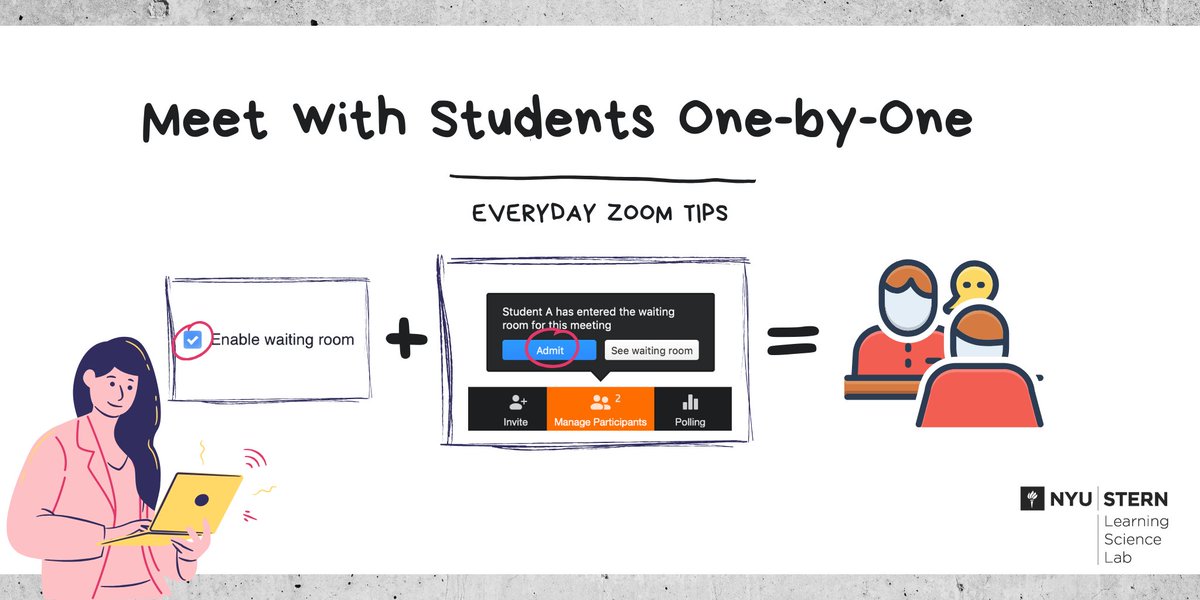
Holding virtual office hours for your class in Zoom 1: Schedule the meeting in NYU Classes 2: Check "Enable Waiting Room" in settings 3: Admit students in one-by-one during the meeting #nyustern #zoomtips

Holding virtual office hours for your class in Zoom

1: Schedule the meeting in NYU Classes
2: Check "Enable Waiting Room" in settings
3: Admit students in one-by-one during the meeting 

#nyustern #zoomtips
NYU Stern Learning Science Lab (@sternlsl) 's Twitter Profile Photo

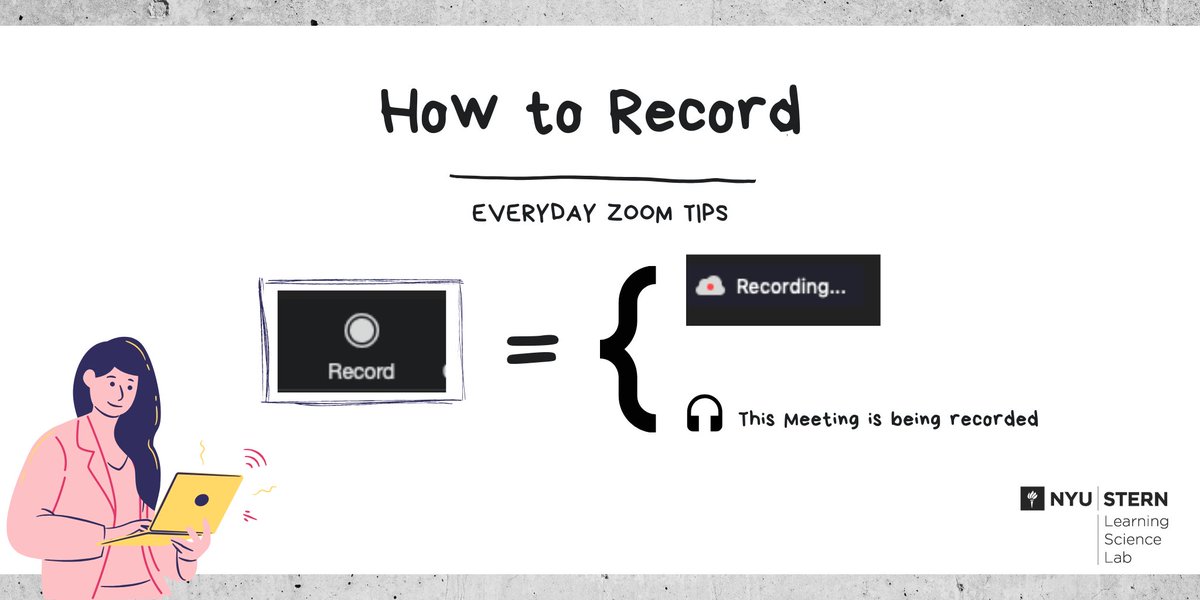
How to Record your Zoom Class. Start your meeting from NYU Classes, and click on the Record button on your toolbar. How do you know the meeting is being recorded? 1. You will hear a notification 2. You will see a red recording icon on the top left #nyustern #zoomtips

How to Record your Zoom Class.

Start your meeting from NYU Classes, and click on the Record button on your toolbar. 

How do you know the meeting is being recorded?
1. You will hear a notification
2. You will see a red recording icon on the top left

#nyustern #zoomtips
NYU Stern Learning Science Lab (@sternlsl) 's Twitter Profile Photo

Who Attended Your Zoom Class? 1: Click Previous Meetings in the Zoom tool in NYU Classes 2: Click Report (check back later if you don't see it right away) 3: Review the list of attendees, or download it as a CSV file #nyustern #zoomtips

Who Attended Your Zoom Class?

1: Click Previous Meetings in the Zoom tool in NYU Classes
2: Click Report (check back later if you don't see it right away)
3: Review the list of attendees, or download it as a CSV file

#nyustern #zoomtips
NYU Stern Learning Science Lab (@sternlsl) 's Twitter Profile Photo

This summer all NYU classes will be taught remotely. Join us tomorrow (Weds 4/22) for our virtual workshop: Getting Ready to Teach Online. Save your spot here >> ow.ly/cS3950zkK6z #NYUStern #NYUfaculty

This summer all NYU classes will be taught remotely. Join us tomorrow (Weds 4/22) for our virtual workshop: Getting Ready to Teach Online. Save your spot here >> ow.ly/cS3950zkK6z #NYUStern #NYUfaculty
NYU Stern Learning Science Lab (@sternlsl) 's Twitter Profile Photo

How to add a customized virtual background in Zoom 1. Click the up arrow “^” next to video button 2. Select “Choose Virtual Background” 3. Click “+” button to add image from your computer #nyustern #zoomtips

How to add a customized virtual background in Zoom

1. Click the up arrow “^” next to video button
2. Select “Choose Virtual Background”
3. Click “+” button to add image from your computer

#nyustern #zoomtips
NYU Stern Learning Science Lab (@sternlsl) 's Twitter Profile Photo

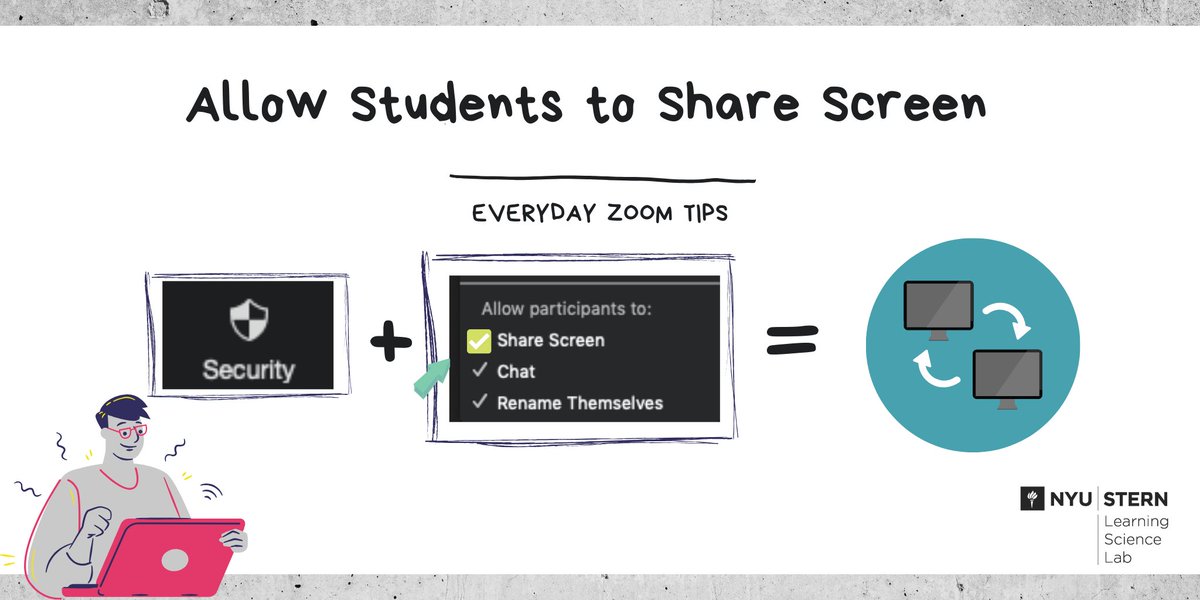
Do you want to allow your students to share their screen in class? 1. Click “Security” 2. In “Allow participants to” section, check “Share Screen” You can also use this tool to enable/disable the chat and control if students can rename themselves. #nyustern #zoomtips

Do you want to allow your students to share their screen in class?

1. Click  “Security”
2. In “Allow participants to” section, check “Share Screen”

You can also use this tool to enable/disable the chat and control if students can rename themselves.

#nyustern #zoomtips
NYU Stern Learning Science Lab (@sternlsl) 's Twitter Profile Photo

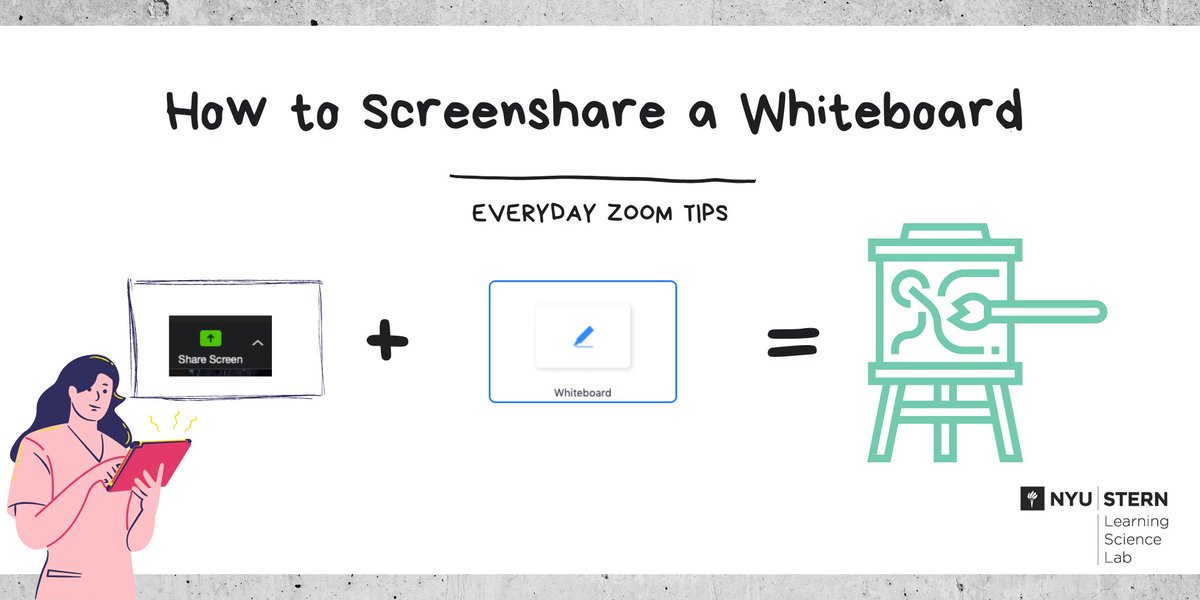
How to Screenshare a Whiteboard in Zoom 1. Click "Share Screen" 2. Choose "Whiteboard" 3. You can draw on the screen as a whiteboard. Add lines, highlights, text and more! #nyustern #zoomtips

How to Screenshare a Whiteboard in Zoom

1. Click "Share Screen"
2. Choose "Whiteboard"
3. You can draw on the screen as a whiteboard. Add lines, highlights, text and more!

#nyustern #zoomtips
NYU Stern Learning Science Lab (@sternlsl) 's Twitter Profile Photo

Interested in running student presentations remotely? 1. Enable screen sharing via the Security icon 2. Verbally invite the students to present, assign an MC to monitor the chat 3. Consider having students rate presentations in a Google Form after class

NYU Stern Learning Science Lab (@sternlsl) 's Twitter Profile Photo

Are you getting ready to teach remotely this summer? Save your spot at our workshop tomorrow, 12:15pm. RSVP here for the Zoom link >> ow.ly/4ItX50zyBBV #NYU #NYUStern

Are you getting ready to teach remotely this summer? Save your spot at our workshop tomorrow, 12:15pm. RSVP here for the Zoom link >> ow.ly/4ItX50zyBBV #NYU #NYUStern
NYU Stern Learning Science Lab (@sternlsl) 's Twitter Profile Photo

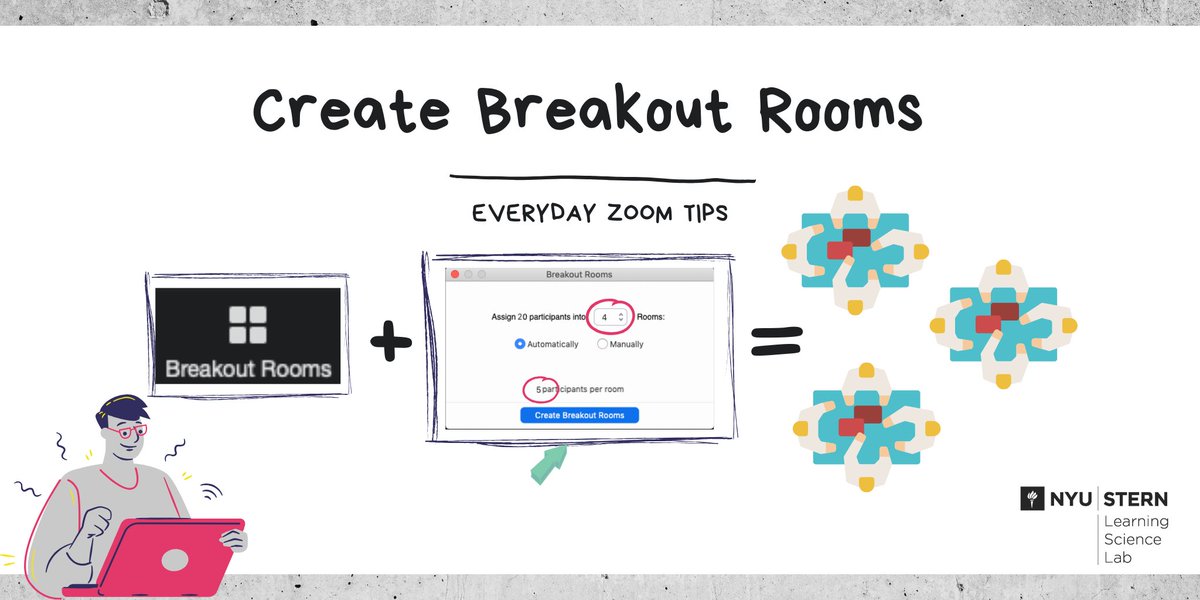
Launching Breakout Rooms from Zoom 1. Click Breakout Rooms in the Zoom toolbar 2. Choose the the # of rooms automatically/manually create 3. When you're ready, click “Create Breakout Rooms” 4. Click Join to visit the rooms from the main session #nyustern #zoomtips

Launching Breakout Rooms from Zoom

1. Click Breakout Rooms in the Zoom toolbar
2. Choose the the # of rooms automatically/manually create
3. When you're ready,  click “Create Breakout Rooms” 
4. Click Join to visit the rooms from the main session

#nyustern #zoomtips
NYU Stern Learning Science Lab (@sternlsl) 's Twitter Profile Photo

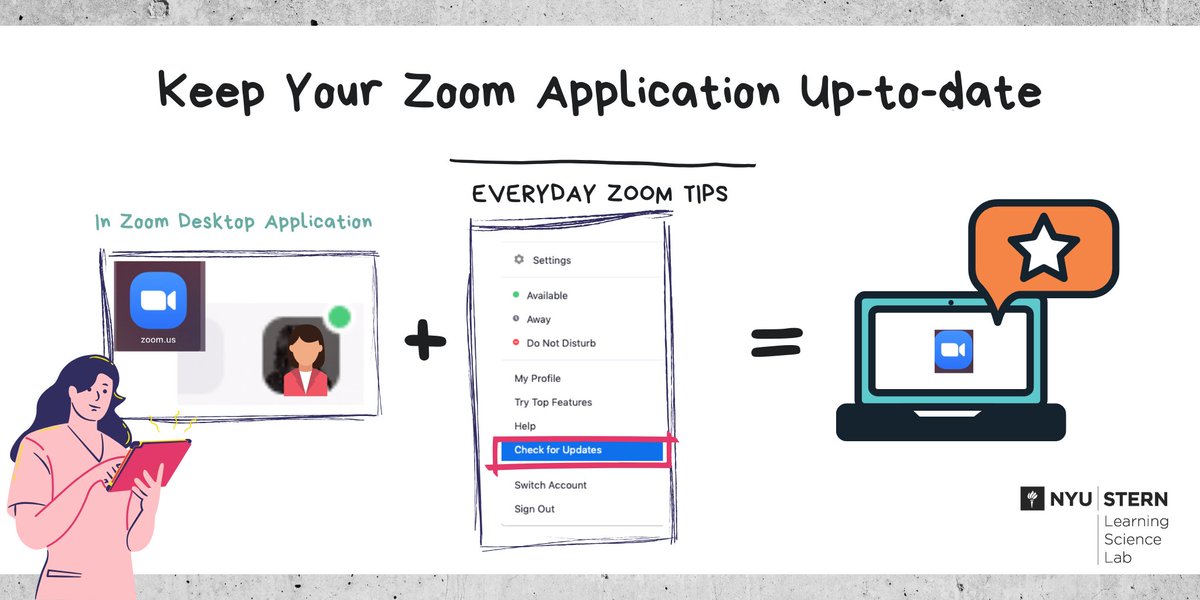
How do I check if my Zoom application is up to date? 1. Open your zoom desktop application 2. Click your profile picture at the top right 3. Click “Check for Updates” 4. Follow the instruction to update the application #nyustern #zoomtips

How do I check if my Zoom application is up to date?

1. Open your zoom desktop application
2. Click your profile picture at the top right
3. Click “Check for Updates”
4. Follow the instruction to update the application

#nyustern #zoomtips
NYU Stern Learning Science Lab (@sternlsl) 's Twitter Profile Photo

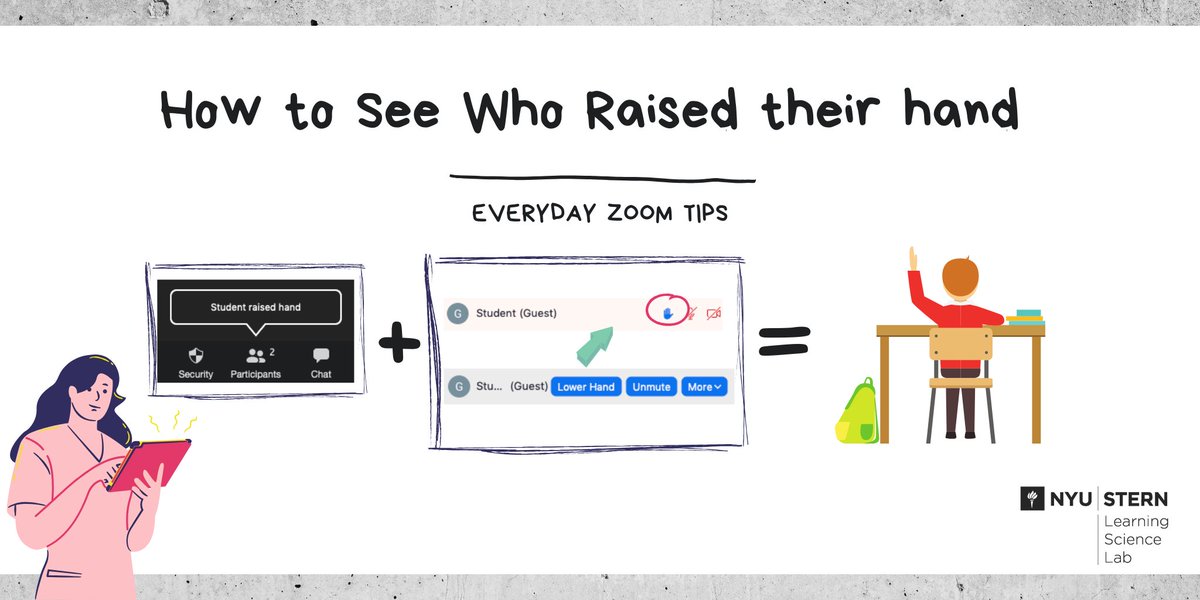
How do I see who raised their hand in Zoom? 1. You will see a notification on your Zoom toolbar 2. Click Participants to see a list of all your students 2. A blue hand icon displays by students with raised hands #nyustern #zoomtips

How do I see who raised their hand in Zoom?

1. You will see a notification on your Zoom toolbar
2. Click Participants to see a list of all your students
2. A blue hand icon displays by students with raised hands

#nyustern #zoomtips
NYU Stern Learning Science Lab (@sternlsl) 's Twitter Profile Photo

Make sure you sign into your Zoom app via NYU SSO to get full functionality: 1. Open the Zoom application on your computer 2. Click “Sign in with SSO” 3. Type “nyu” into the field and click continue 3. Log in with your NetID #nyustern #zoomtips

Make sure you sign into your Zoom app via NYU SSO to get full functionality:

1. Open the Zoom application on your computer
2. Click “Sign in with SSO” 
3. Type “nyu” into the field and click continue
3. Log in with your NetID 

#nyustern #zoomtips